The Hardest Part
The hardest part of shipping at scale is not buying the label. It is making sure every order is set up correctly before the label is created.
Which location should fulfill the order? Which carrier and service should be used? Does the package need insurance? Does a certain product require different packaging? Should an international order be reviewed before it moves forward?
When someone has to make those decisions order by order, fulfillment slows down and mistakes become more likely. ShipBae Automation Rules let merchants define repeatable decisions in advance, then apply them consistently as orders enter the system.
Instead of treating every shipment the same, rules can account for specific products, stores, destinations, packages, and fulfillment requirements. They can also flag the orders that should not move forward without a closer look.
What Are Automation Rules?
Automation Rules are instructions that tell ShipBae how to handle an order when it matches the criteria or specification selected by the merchant.
At its simplest, a rule tells ShipBae:
When an order meets these specifications, take these actions.
For example:
Specification: The order is domestic.
Action: Select the cheapest available shipping service.
That is a basic example. A merchant can also create more specific rules that account for the order source, product SKU, destination, value, weight, package size, or ship-from location.
The goal is not to remove people from the process. It is to let the system handle predictable decisions so the team can focus on exceptions, unusual shipments, and orders that genuinely require review.
What Changes When You Use Automation Rules?
Without automation rules, a team member has to review an order, decide how it should ship, and update the relevant fields. Even when the decision is straightforward, the same steps have to be repeated for the next order.
With Automation Rules, the merchant defines the decision once. ShipBae checks each incoming order against the selected specifications and applies the corresponding actions only when those conditions are met.
For example, without a rule, someone may need to identify every order over $500, add insurance, and flag it for extra attention. With a rule, ShipBae can recognize the order value, add a "High Value" tag, and apply package insurance automatically.
The result is not simply fewer clicks. Routine orders can reach the label-creation stage with the right instructions already in place, while exceptions can be tagged, documented, or placed on hold for a person to review.
How ShipBae Automation Rules Work
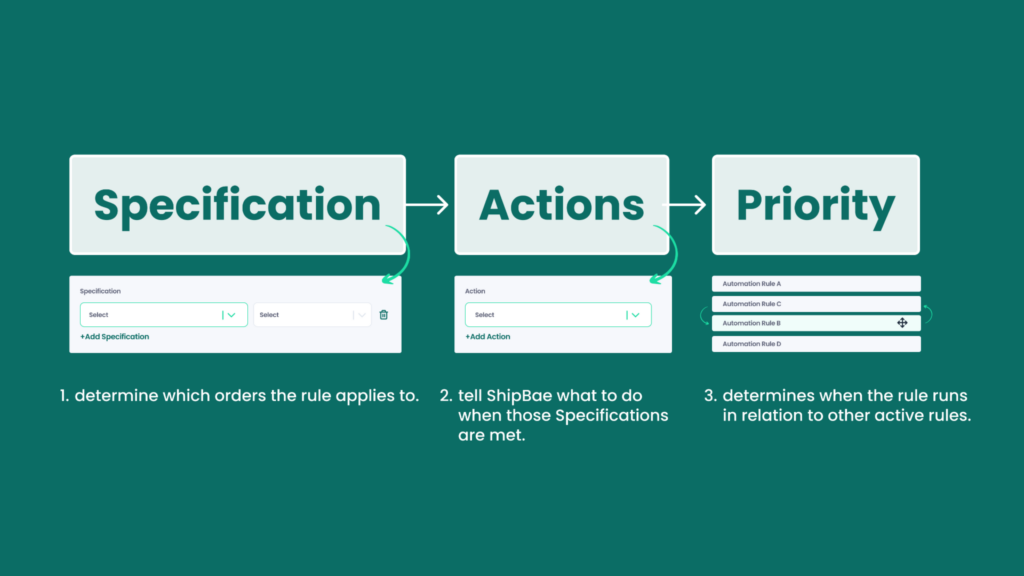
Every automation rule has three parts:
- Specifications determine which orders the rule applies to.
- Actions tell ShipBae what to do when those specifications are met.
- Priority determines when the rule runs in relation to other active rules.
A rule can be simple:
Specification: The order is shipping within the United States.
Action: Select the cheapest available service.
Or it can account for several details at once:
Specification: The order came from a particular Shopify store and contains a specific SKU.
Actions: Assign the correct ship-from address, apply a saved package preset, and select a specific shipping service.
All specifications within a rule must be met before its actions are applied. This gives merchants precise control and helps prevent a broad rule from changing orders that do not meet the full criteria.
Because a single rule can trigger multiple actions, ShipBae can prepare several parts of an order at the same time. This goes beyond automating a single click. It creates a complete workflow for a particular type of order.
This is where the flexibility of the feature becomes especially useful. You can even create a rule that applies only when an order comes from a certain store, contains a particular SKU, and is shipping to a specific region. That one rule can then assign the correct ship-from location, apply a package preset, select the required service, and add a note for the fulfillment team.
What Order Details Can You Use in an Automation Rule?
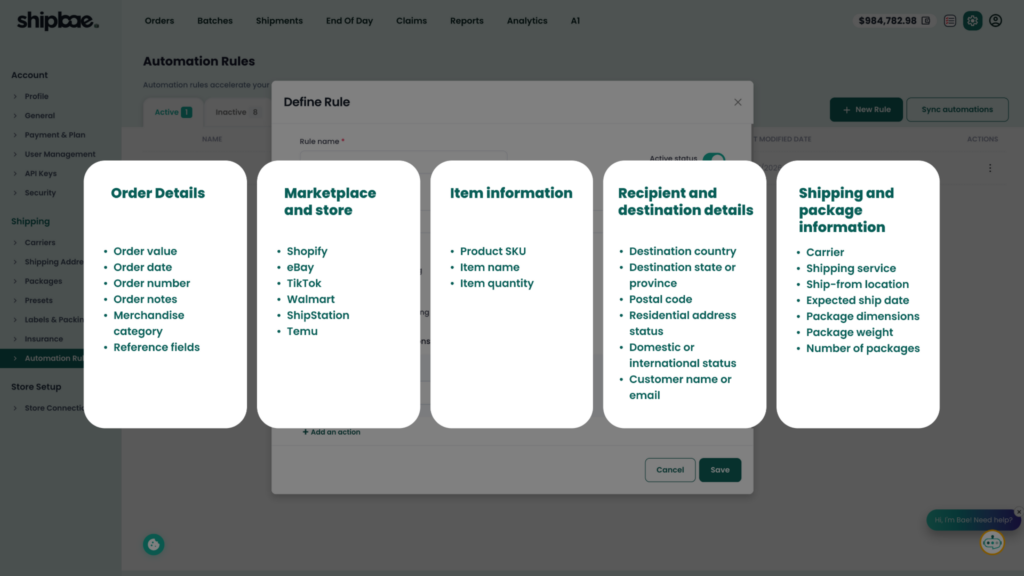
ShipBae can evaluate information from different parts of an order to determine whether a rule should apply.
Order details
Rules can use information such as:
- Order value
- Order date
- Order number
- Order notes
- Merchandise category
- Reference fields
These specifications can help identify high-value orders, separate merchandise categories, or find orders containing specific information in their notes or reference fields.
Note: we will continue to add more specifications and actions
Marketplace and store
Rules can identify the marketplace or store an order came from.
This allows merchants to create different workflows for orders synced from platforms such as Shopify, eBay, TikTok, Walmart, ShipStation, or Temu. A merchant operating several storefronts can apply rules to one store without changing how orders from another store are handled.
Item information
Rules can look at:
- Product SKU
- Item name
- Item quantity
This is useful when certain products require different packaging, shipping services, fulfillment locations, or handling instructions.
For example, an oversized product could be assigned a specific package type. An order containing a fragile item could receive a preferred shipping service and a tag that tells the fulfillment team to take extra care.
Recipient and destination details
Rules can be based on:
- Destination country
- Destination state or province
- Postal code
- Residential address status
- Domestic or international status
- Customer name or email
This makes it possible to build different shipping workflows around where an order is going. A merchant might use one rule for Alaska and Hawaii, another for international shipments, and another for residential deliveries within the continental United States.
Shipping and package information
Rules can also evaluate:
- Carrier
- Shipping service
- Ship-from location
- Expected ship date
- Package dimensions
- Package weight
- Number of packages
These specifications give merchants more control when fulfillment decisions change based on package size, weight, service level, or shipping location.
What Can ShipBae Do When a Rule Matches?
When an order meets the selected specifications, ShipBae can automatically take one or more actions, including:
- Add one or more order tags
- Select the cheapest available shipping service
- Assign a specific shipping service
- Set the package type or package weight
- Apply a saved shipping preset
- Assign a ship-from address
- Add package insurance
- Set the delivery confirmation type
- Apply a HAZMAT service option
- Place the order on hold until a specified date
- Add an order note
- Set reference information
- Set the expected ship-by date
Together, these actions allow ShipBae to prepare the shipping details of an order using instructions the merchant has already defined. Instead of asking a team member to update every field individually, a rule can complete several repeatable steps at once.
The important distinction is that a rule does not apply the same action to every order. ShipBae evaluates the order first, then applies the action only when the selected specifications are met.
Go Above and Beyond Basic Shipping
Selecting a carrier or shipping service is only one part of the workflow. ShipBae Automation Rules can combine detailed specifications with several actions, allowing merchants to account for both routine orders and the exceptions that tend to create the most manual work.
For example, you can even use Automation Rules to:
- Apply one workflow to a specific storefront without changing orders from your other sales channels
- Route orders to different ship-from locations based on the store, product, or destination
- Set packaging details and a required shipping service when an order contains a particular SKU
- Add insurance and a visible tag when an order exceeds a selected value
- Apply a HAZMAT service option and add handling instructions for qualifying orders
- Hold an international order for review while adding a note that tells the team what to check
- Use broad rules for everyday orders while controlling how more specific exceptions are handled through rule priority
A single order may match more than one rule. By arranging active rules in priority order, merchants can create a general workflow for most orders and still account for a particular product, store, destination, or service requirement. That level of control is what turns individual automations into a system that reflects how the business actually ships.
Practical Automation Rule Examples
The most valuable rules usually come from decisions a fulfillment team already makes repeatedly.
Compare rates and select a service
For qualifying shipments where delivery speed is flexible, ShipBae can select the least expensive available service.
Specifications: The order is domestic and meets the selected package or destination requirements.
Action: Select the cheapest available shipping service.
The rule can be broad, or it can be limited by package weight, destination, marketplace, or other order details. The cheapest service may be right for one group of orders, while a specific service may be required for another because of timing, product, destination, or customer expectations.
Route orders to the right fulfillment location
If orders from a particular store should ship from a specific warehouse, create a rule based on the marketplace or store name.
Specification: The store name matches the selected storefront.
Action: Assign the correct ship-from address.
The same rule can also apply the package preset or shipping service used by that location. This is especially helpful for merchants managing multiple stores, brands, or shipping locations.
Handle certain products differently
If a product requires specific packaging or a particular shipping method, create a rule based on its SKU or item name.
Specification: The order contains the selected SKU.
Actions: Set the package type, enter the appropriate weight, and select the required shipping service.
This can reduce packaging mistakes and help prevent the wrong service from being selected.
Protect high-value orders
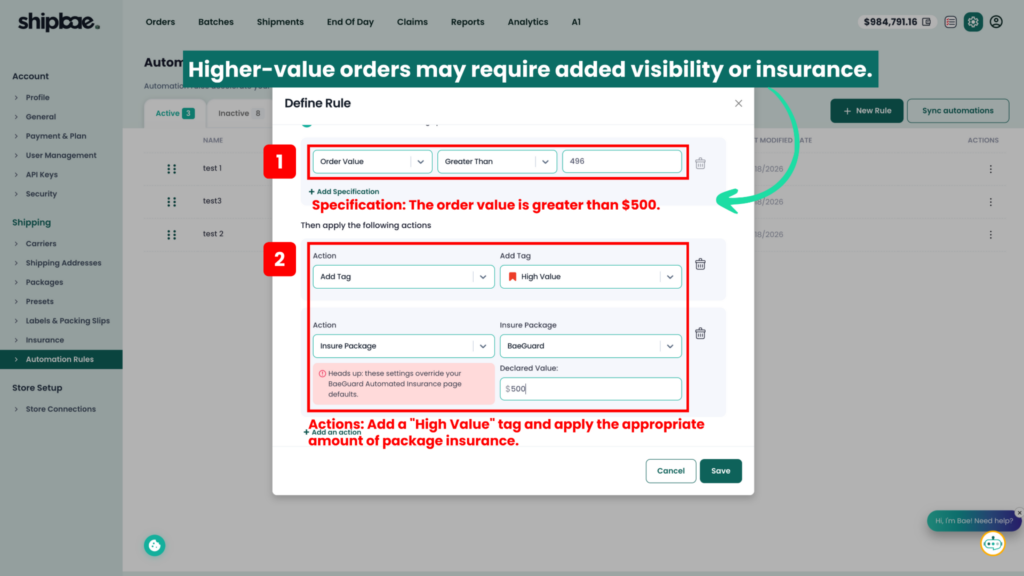
Higher-value orders may require added visibility or insurance.
Specification: The order value is greater than $500.
Actions: Add a "High Value" tag and apply the appropriate amount of package insurance.
The tag makes these orders easier to identify, while the insurance action helps ensure the chosen protection is applied consistently.
Pause international orders for review
International orders may require additional information or review before shipping.
Specification: The order is international.
Actions: Place the order on hold until a specified date and add a note explaining what needs to be checked.
This keeps the order from moving forward with incomplete information and gives the team a clear next step.
Organize orders that need special handling
Not every exception needs to stop the workflow. Some orders simply need to be easier to find.
For example, a merchant can tag orders that contain a fragile item, apply a HAZMAT service option when required, add a note for the packing team, or set a ship-by date based on the order details.
This helps teams organize fulfillment work consistently without relying on someone to remember every exception.
How Automation Rules Prepare Orders for Label Creation
Before a label can be created, the order may need a carrier and service, ship-from address, package details, delivery confirmation, insurance, and other shipment information.
Automation Rules can apply those decisions in advance. That means fewer fields to update and fewer choices to repeat when the order reaches the label-creation stage. The rules do not physically print or apply the label. They prepare the order so the correct label can be created without rebuilding the same decisions each time.
When Are Automation Rules Applied?
Rules can run automatically when:
- An order is created manually in ShipBae
- A new order is synced from an integrated marketplace
- Orders are added through a standard batch upload
- ShipBae A1 orders are added through a batch upload
Automation Rules do not apply to orders that have already been shipped or canceled.
When a new rule is created or an existing rule is changed, it does not automatically update orders already in the system. Merchants can use Sync Automations to apply their current rules to open and on-hold orders.
What Happens When Multiple Rules Match?
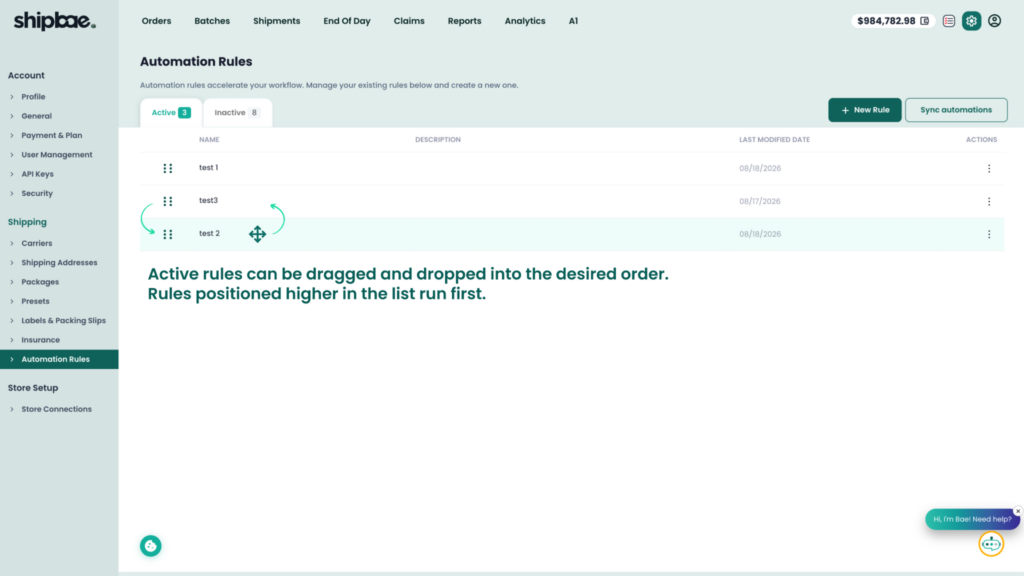
More than one rule can apply to the same order. When that happens, ShipBae processes all matching rules according to their priority.
Active rules can be dragged and dropped into the desired order. Rules positioned higher in the list run first.
Priority matters when two rules update the same information. For example, one rule may assign a specific shipping service while another selects the cheapest service. The order in which those rules run determines the final selection.
This allows merchants to combine broad workflows with specific exceptions. One rule can handle a large group of routine orders, while another accounts for a particular product, destination, store, or fulfillment requirement.
How to Start Building Automation Rules
Start with the work your team repeats most often. You do not need to automate every possible scenario at once.
Look for patterns such as:
- Choosing the same service for the same type of order
- Routing orders to the same shipping location
- Reviewing the same categories of shipments
- Correcting package information for certain products
- Adding the same tags, notes, or insurance
- Separating orders by store, marketplace, or destination
Choose one high-volume, predictable workflow and write down the decision as a simple statement:
When this is true, do this.
Then build the matching specifications and actions in ShipBae. Test the rule against a few representative orders, confirm the results, and only then add more complex scenarios.
This approach keeps Automation Rules easier to manage. It also helps prevent a long list of overlapping rules that no one understands later.
ShipBae supports up to 100 automation rules per account, so merchants can begin with a few high-impact workflows and expand as their shipping needs become more complex.
Less Repetition, More Consistency
The purpose of automation is not to give up control. It is to make a decision once and have the system apply it consistently whenever the same situation appears again.
In practice, that is what useful shipping automation should do: reduce repetitive clicks, limit opportunities for human error, and keep routine orders moving without taking control away from the team. The people handling fulfillment can focus their attention where judgment is actually needed.
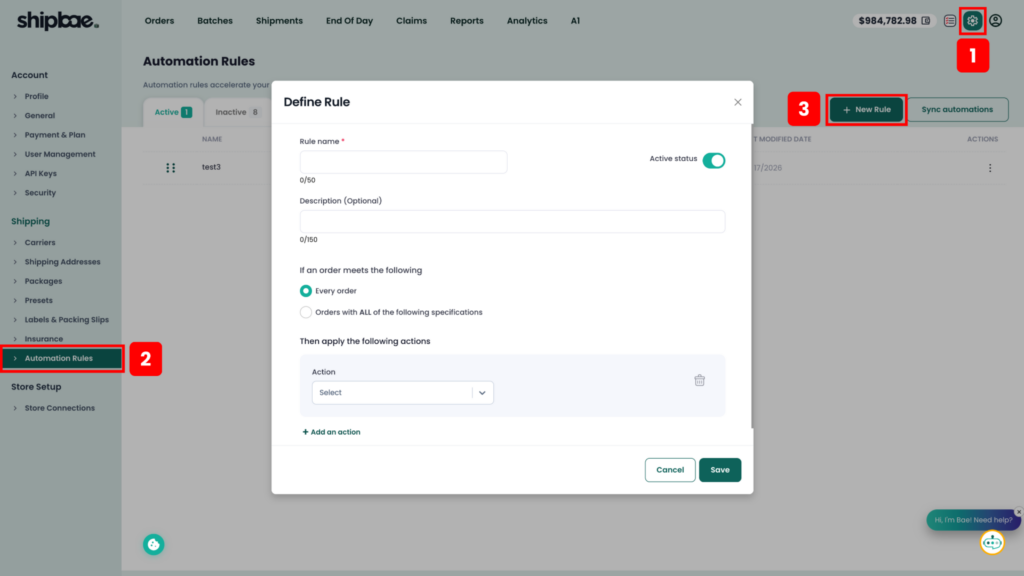
To create a rule, log in to ShipBae and go to Settings > Shipping > Automation Rules.